Build an MCP tool
This tutorial shows you how to expose Xorq functions as tools that Claude can call conversationally. You’ll learn how to use the Model Context Protocol (MCP) to integrate Xorq with Claude Desktop.
After completing this tutorial, you’ll know how to wrap Xorq UDXFs as MCP tools, configure Claude Desktop to use them, and interact with your data functions through natural language.
Prerequisites
You need:
- Xorq installed (see Install Xorq)
- FastMCP library:
pip install fastmcp - OpenAI Python client:
pip install openai - OpenAI API key from platform.openai.com
- Claude Desktop: Download from claude.ai/download
Claude Desktop is required for this tutorial. The web version (claude.ai) does NOT support MCP tools. You must download and install the desktop application.
How this tutorial works
You’ll build a Python file incrementally. Each section adds new code to the file.
Two tabs per code block:
- Complete code: The full runnable file at this stage
- Changes: Just the lines you’re adding (shown as diff)
Create a file called sentiment_mcp_server.py and build it section by section.
Think of MCP as a universal adapter. Claude speaks MCP to request tool executions. Your Xorq functions speak Flight protocol. FlightMCPServer translates between them, exposing Xorq UDXFs as tools Claude can call.
How the integration works
The architecture connects four components:
- Claude Desktop asks questions and calls tools through MCP
- MCP server (FlightMCPServer) receives tool calls and translates them to Flight protocol
- Flight server executes UDXFs (User-Defined Exchange Functions) from Xorq
- UDXF processes data and returns results
The flow looks like this:
User → Claude Desktop → MCP protocol → FlightMCPServer → Flight protocol → UDXF → Results → ClaudeUnderstanding this flow helps you debug integration issues. If Claude can’t call your tool, check each connection point: MCP server running? Flight server started? UDXF registered?
Create the FlightMCPServer class
You’ll build the bridge between MCP and Flight protocols. This class handles the translation.
Add this to your sentiment_mcp_server.py file:
from typing import Callable, Optional
import sys
import toolz
from mcp.server.fastmcp import FastMCP
from xorq.flight import FlightServer, FlightUrl

class FlightMCPServer:
    def __init__(
        self,
        name: str,
        flight_port: int = 8818,
    ):
        self.name = name
        self.port = flight_port
        self.mcp = FastMCP(name)

        self.flight_server = None
        self.client = None

        self.udxfs = {}
        self.schemas = {}
        self.exchange_functions = {}

    def start_flight_server(self) -> FlightServer:
        if self.flight_server:
            return self.flight_server

        try:
            self.flight_server = FlightServer(
                FlightUrl(port=self.port),
                exchangers=list(self.udxfs.values())
            )

            self.flight_server.serve()
            self.client = self.flight_server.client

            for udxf_name, udxf in self.udxfs.items():
                self.exchange_functions[udxf_name] = toolz.curry(
                    self.client.do_exchange, udxf.command
                )

            return self.flight_server
        except Exception:
            raise

    def create_mcp_tool(
        self,
        udxf,
        input_mapper: Callable,
        tool_name: Optional[str] = None,
        description: Optional[str] = None,
        output_mapper: Optional[Callable] = None,
    ):
        udxf_command = udxf.command
        tool_name = tool_name or udxf_command

        self.udxfs[udxf_command] = udxf

        if not self.flight_server:
            self.start_flight_server()

        do_exchange = self.exchange_functions.get(udxf_command)

        if output_mapper is None:
            def default_output_mapper(result_df):
                if len(result_df) > 0:
                    return result_df.to_string()
                return "No results"

            actual_output_mapper = default_output_mapper
        else:
            actual_output_mapper = output_mapper

        @self.mcp.tool(name=tool_name, description=description)
        async def wrapper(text: str):
            try:
                input_data = input_mapper(text=text)

                _, result = do_exchange(input_data)
                result_df = result.read_pandas()

                output = actual_output_mapper(result_df)
                return output
            except Exception as e:
                return f"Error executing tool: {str(e)}"

        return wrapper

    def run(self, transport: str = "stdio"):
        if not self.flight_server:
            self.start_flight_server()
        try:
            self.mcp.run(transport=transport)
        except Exception:
            raise

    def stop(self):
        pass

if __name__ == "__main__":
    print("FlightMCPServer class created", file=sys.stderr)
+ from typing import Callable, Optional
+ import sys
+ import toolz
+ from mcp.server.fastmcp import FastMCP
+ from xorq.flight import FlightServer, FlightUrl
+
+ class FlightMCPServer:
+ def __init__(
+ self,
+ name: str,
+ flight_port: int = 8818,
+ ):
+ self.name = name
+ self.port = flight_port
+ self.mcp = FastMCP(name)
+
+ self.flight_server = None
+ self.client = None
+
+ self.udxfs = {}
+ self.schemas = {}
+ self.exchange_functions = {}
+
+ def start_flight_server(self) -> FlightServer:
+ if self.flight_server:
+ return self.flight_server
+
+ try:
+ self.flight_server = FlightServer(
+ FlightUrl(port=self.port),
+ exchangers=list(self.udxfs.values())
+ )
+
+ self.flight_server.serve()
+ self.client = self.flight_server.client
+
+ for udxf_name, udxf in self.udxfs.items():
+ self.exchange_functions[udxf_name] = toolz.curry(
+ self.client.do_exchange, udxf.command
+ )
+
+ return self.flight_server
+ except Exception:
+ raise
+
+ def create_mcp_tool(
+ self,
+ udxf,
+ input_mapper: Callable,
+ tool_name: Optional[str] = None,
+ description: Optional[str] = None,
+ output_mapper: Optional[Callable] = None,
+ ):
+ udxf_command = udxf.command
+ tool_name = tool_name or udxf_command
+
+ self.udxfs[udxf_command] = udxf
+
+ if not self.flight_server:
+ self.start_flight_server()
+
+ do_exchange = self.exchange_functions.get(udxf_command)
+
+ if output_mapper is None:
+ def default_output_mapper(result_df):
+ if len(result_df) > 0:
+ return result_df.to_string()
+ return "No results"
+
+ actual_output_mapper = default_output_mapper
+ else:
+ actual_output_mapper = output_mapper
+
+ @self.mcp.tool(name=tool_name, description=description)
+ async def wrapper(text: str):
+ try:
+ input_data = input_mapper(text=text)
+
+ _, result = do_exchange(input_data)
+ result_df = result.read_pandas()
+
+ output = actual_output_mapper(result_df)
+ return output
+ except Exception as e:
+ return f"Error executing tool: {str(e)}"
+
+ return wrapper
+
+ def run(self, transport: str = "stdio"):
+ if not self.flight_server:
+ self.start_flight_server()
+ try:
+ self.mcp.run(transport=transport)
+ except Exception:
+ raise
+
+ def stop(self):
+ pass
+
+ if __name__ == "__main__":
+ print("FlightMCPServer class created", file=sys.stderr)Key differences from generic MCP servers:
- The
wrapperfunction explicitly definestext: stras a parameter instead of using**kwargs- this ensures proper parameter handling - We call
do_exchange(input_data)directly, notinput_data.to_pyarrow_batches()- the input is already in the correct format - All print statements use
file=sys.stderrto avoid interfering with MCP’s JSON communication on stdout
Run the file to verify the class definition:
python sentiment_mcp_server.pyYou should see output in your terminal sent to stderr, so it won’t interfere with MCP communication:
FlightMCPServer class createdBuild a sentiment analysis UDXF
Now create a function that analyzes text sentiment using OpenAI.
Update your sentiment_mcp_server.py file:
from typing import Callable, Optional
import sys
import toolz
from mcp.server.fastmcp import FastMCP
from xorq.flight import FlightServer, FlightUrl
import functools
import os
from openai import OpenAI
import pandas as pd
import xorq.api as xo
from xorq.flight.exchanger import make_udxf

class FlightMCPServer:
    def __init__(
        self,
        name: str,
        flight_port: int = 8818,
    ):
        self.name = name
        self.port = flight_port
        self.mcp = FastMCP(name)

        self.flight_server = None
        self.client = None

        self.udxfs = {}
        self.schemas = {}
        self.exchange_functions = {}

    def start_flight_server(self) -> FlightServer:
        if self.flight_server:
            return self.flight_server

        try:
            self.flight_server = FlightServer(
                FlightUrl(port=self.port),
                exchangers=list(self.udxfs.values())
            )

            self.flight_server.serve()
            self.client = self.flight_server.client

            for udxf_name, udxf in self.udxfs.items():
                self.exchange_functions[udxf_name] = toolz.curry(
                    self.client.do_exchange, udxf.command
                )

            return self.flight_server
        except Exception:
            raise

    def create_mcp_tool(
        self,
        udxf,
        input_mapper: Callable,
        tool_name: Optional[str] = None,
        description: Optional[str] = None,
        output_mapper: Optional[Callable] = None,
    ):
        udxf_command = udxf.command
        tool_name = tool_name or udxf_command

        self.udxfs[udxf_command] = udxf

        if not self.flight_server:
            self.start_flight_server()

        do_exchange = self.exchange_functions.get(udxf_command)

        if output_mapper is None:
            def default_output_mapper(result_df):
                if len(result_df) > 0:
                    return result_df.to_string()
                return "No results"

            actual_output_mapper = default_output_mapper
        else:
            actual_output_mapper = output_mapper

        @self.mcp.tool(name=tool_name, description=description)
        async def wrapper(text: str):
            try:
                input_data = input_mapper(text=text)

                _, result = do_exchange(input_data)
                result_df = result.read_pandas()

                output = actual_output_mapper(result_df)
                return output
            except Exception as e:
                return f"Error executing tool: {str(e)}"

        return wrapper

    def run(self, transport: str = "stdio"):
        if not self.flight_server:
            self.start_flight_server()
        try:
            self.mcp.run(transport=transport)
        except Exception:
            raise

    def stop(self):
        pass

@functools.cache
def get_client():
    return OpenAI(api_key=os.environ["OPENAI_API_KEY"])

def analyze_sentiment(df: pd.DataFrame) -> pd.DataFrame:
    text = df["text"].iloc[0]

    if not text or text.strip() == "":
        return pd.DataFrame({"sentiment": ["NEUTRAL"]})

    messages = [
        {
            "role": "system",
            "content": "You are a sentiment analyzer. Respond with only one word: POSITIVE, NEGATIVE, or NEUTRAL."
        },
        {
            "role": "user",
            "content": f"Analyze the sentiment: {text}"
        }
    ]

    try:
        response = get_client().chat.completions.create(
            model="gpt-3.5-turbo",
            messages=messages,
            max_tokens=10,
            temperature=0,
        )
        sentiment = response.choices[0].message.content.strip()
        return pd.DataFrame({"sentiment": [sentiment]})
    except Exception as e:
        print(f"OpenAI Error: {str(e)}", file=sys.stderr)
        return pd.DataFrame({"sentiment": ["ERROR"]})

schema_in = xo.schema({"text": str})
schema_out = xo.schema({"sentiment": str})

sentiment_udxf = make_udxf(
    analyze_sentiment,
    schema_in,
    schema_out,
    name="sentiment_analyzer"
)

if __name__ == "__main__":
    test_df = pd.DataFrame({"text": ["This is amazing!"]})
    result = analyze_sentiment(test_df)
    print("Testing sentiment function:", file=sys.stderr)
    print(result, file=sys.stderr)

    print("\nSentiment UDXF created", file=sys.stderr)
from typing import Callable, Optional
+ import sys
import toolz
from mcp.server.fastmcp import FastMCP
from xorq.flight import FlightServer, FlightUrl
+ import functools
+ import os
+ from openai import OpenAI
+ import pandas as pd
+ import xorq.api as xo
+ from xorq.flight.exchanger import make_udxf
class FlightMCPServer:
# ... (class definition unchanged)
+ @functools.cache
+ def get_client():
+ return OpenAI(api_key=os.environ["OPENAI_API_KEY"])
+
+ def analyze_sentiment(df: pd.DataFrame) -> pd.DataFrame:
+ text = df["text"].iloc[0]
+
+ if not text or text.strip() == "":
+ return pd.DataFrame({"sentiment": ["NEUTRAL"]})
+
+ messages = [
+ {
+ "role": "system",
+ "content": "You are a sentiment analyzer. Respond with only one word: POSITIVE, NEGATIVE, or NEUTRAL."
+ },
+ {
+ "role": "user",
+ "content": f"Analyze the sentiment: {text}"
+ }
+ ]
+
+ try:
+ response = get_client().chat.completions.create(
+ model="gpt-3.5-turbo",
+ messages=messages,
+ max_tokens=10,
+ temperature=0,
+ )
+ sentiment = response.choices[0].message.content.strip()
+ return pd.DataFrame({"sentiment": [sentiment]})
+ except Exception as e:
+ print(f"OpenAI Error: {str(e)}", file=sys.stderr)
+ return pd.DataFrame({"sentiment": ["ERROR"]})
+
+ schema_in = xo.schema({"text": str})
+ schema_out = xo.schema({"sentiment": str})
+
+ sentiment_udxf = make_udxf(
+ analyze_sentiment,
+ schema_in,
+ schema_out,
+ name="sentiment_analyzer"
+ )
if __name__ == "__main__":
+ test_df = pd.DataFrame({"text": ["This is amazing!"]})
+ result = analyze_sentiment(test_df)
+ print("Testing sentiment function:", file=sys.stderr)
+ print(result, file=sys.stderr)
+
+ print("\nSentiment UDXF created", file=sys.stderr)Notice we added error logging in the except block: print(f"OpenAI Error: {str(e)}", file=sys.stderr). This helps debug OpenAI API issues without breaking MCP communication.
Run the file:
python sentiment_mcp_server.pyYou should see output like:
Testing sentiment function:
  sentiment
0  POSITIVE

Sentiment UDXF created
Create input and output mappers
Claude sends arguments as dictionaries. Your UDXF expects DataFrames. Mapper functions translate between these formats.
Update your sentiment_mcp_server.py file:
from typing import Callable, Optional
import sys
import toolz
from mcp.server.fastmcp import FastMCP
from xorq.flight import FlightServer, FlightUrl
import functools
import os
from openai import OpenAI
import pandas as pd
import xorq.api as xo
from xorq.flight.exchanger import make_udxf

class FlightMCPServer:
    def __init__(
        self,
        name: str,
        flight_port: int = 8818,
    ):
        self.name = name
        self.port = flight_port
        self.mcp = FastMCP(name)

        self.flight_server = None
        self.client = None

        self.udxfs = {}
        self.schemas = {}
        self.exchange_functions = {}

    def start_flight_server(self) -> FlightServer:
        if self.flight_server:
            return self.flight_server

        try:
            self.flight_server = FlightServer(
                FlightUrl(port=self.port),
                exchangers=list(self.udxfs.values())
            )

            self.flight_server.serve()
            self.client = self.flight_server.client

            for udxf_name, udxf in self.udxfs.items():
                self.exchange_functions[udxf_name] = toolz.curry(
                    self.client.do_exchange, udxf.command
                )

            return self.flight_server
        except Exception:
            raise

    def create_mcp_tool(
        self,
        udxf,
        input_mapper: Callable,
        tool_name: Optional[str] = None,
        description: Optional[str] = None,
        output_mapper: Optional[Callable] = None,
    ):
        udxf_command = udxf.command
        tool_name = tool_name or udxf_command

        self.udxfs[udxf_command] = udxf

        if not self.flight_server:
            self.start_flight_server()

        do_exchange = self.exchange_functions.get(udxf_command)

        if output_mapper is None:
            def default_output_mapper(result_df):
                if len(result_df) > 0:
                    return result_df.to_string()
                return "No results"

            actual_output_mapper = default_output_mapper
        else:
            actual_output_mapper = output_mapper

        @self.mcp.tool(name=tool_name, description=description)
        async def wrapper(text: str):
            try:
                input_data = input_mapper(text=text)

                _, result = do_exchange(input_data)
                result_df = result.read_pandas()

                output = actual_output_mapper(result_df)
                return output
            except Exception as e:
                return f"Error executing tool: {str(e)}"

        return wrapper

    def run(self, transport: str = "stdio"):
        if not self.flight_server:
            self.start_flight_server()
        try:
            self.mcp.run(transport=transport)
        except Exception:
            raise

    def stop(self):
        pass

@functools.cache
def get_client():
    return OpenAI(api_key=os.environ["OPENAI_API_KEY"])

def analyze_sentiment(df: pd.DataFrame) -> pd.DataFrame:
    text = df["text"].iloc[0]

    if not text or text.strip() == "":
        return pd.DataFrame({"sentiment": ["NEUTRAL"]})

    messages = [
        {
            "role": "system",
            "content": "You are a sentiment analyzer. Respond with only one word: POSITIVE, NEGATIVE, or NEUTRAL."
        },
        {
            "role": "user",
            "content": f"Analyze the sentiment: {text}"
        }
    ]

    try:
        response = get_client().chat.completions.create(
            model="gpt-3.5-turbo",
            messages=messages,
            max_tokens=10,
            temperature=0,
        )
        sentiment = response.choices[0].message.content.strip()
        return pd.DataFrame({"sentiment": [sentiment]})
    except Exception as e:
        print(f"OpenAI Error: {str(e)}", file=sys.stderr)
        return pd.DataFrame({"sentiment": ["ERROR"]})

schema_in = xo.schema({"text": str})
schema_out = xo.schema({"sentiment": str})

sentiment_udxf = make_udxf(
    analyze_sentiment,
    schema_in,
    schema_out,
    name="sentiment_analyzer"
)

def sentiment_input_mapper(**kwargs):
    text = kwargs.get("text", "")
    return xo.memtable({"text": [text]}, schema=schema_in)

def sentiment_output_mapper(result_df):
    if len(result_df) == 0:
        return {"sentiment": "NO_RESULT", "text": "No data to analyze"}

    sentiment = result_df["sentiment"].iloc[0]

    return {
        "sentiment": sentiment,
        "interpretation": f"The text sentiment is {sentiment}"
    }

if __name__ == "__main__":
    print("Testing input mapper:", file=sys.stderr)
    test_input = sentiment_input_mapper(text="This is amazing!")
    print(test_input.execute(), file=sys.stderr)

    print("\nTesting output mapper:", file=sys.stderr)
    test_output = sentiment_output_mapper(pd.DataFrame({"sentiment": ["POSITIVE"]}))
    print(test_output, file=sys.stderr)

    print("\nMappers created and tested", file=sys.stderr)
sentiment_udxf = make_udxf(
analyze_sentiment,
schema_in,
schema_out,
name="sentiment_analyzer"
)
+ def sentiment_input_mapper(**kwargs):
+ text = kwargs.get("text", "")
+ return xo.memtable({"text": [text]}, schema=schema_in)
+
+ def sentiment_output_mapper(result_df):
+ if len(result_df) == 0:
+ return {"sentiment": "NO_RESULT", "text": "No data to analyze"}
+
+ sentiment = result_df["sentiment"].iloc[0]
+
+ return {
+ "sentiment": sentiment,
+ "interpretation": f"The text sentiment is {sentiment}"
+ }
if __name__ == "__main__":
+ print("Testing input mapper:", file=sys.stderr)
+ test_input = sentiment_input_mapper(text="This is amazing!")
+ print(test_input.execute(), file=sys.stderr)
+
+ print("\nTesting output mapper:", file=sys.stderr)
+ test_output = sentiment_output_mapper(pd.DataFrame({"sentiment": ["POSITIVE"]}))
+ print(test_output, file=sys.stderr)
+
+ print("\nMappers created and tested", file=sys.stderr)Run the file:
python sentiment_mcp_server.pyYou should see output like this:
Testing input mapper:
            text
0  This is amazing!

Testing output mapper:
{'sentiment': 'POSITIVE', 'interpretation': 'The text sentiment is POSITIVE'}

Mappers created and tested
Register the MCP tool
Connect all pieces and create the MCP tool that Claude can call.
Update your sentiment_mcp_server.py file:
from typing import Callable, Optional
import sys
import toolz
from mcp.server.fastmcp import FastMCP
from xorq.flight import FlightServer, FlightUrl
import functools
import os
from openai import OpenAI
import pandas as pd
import xorq.api as xo
from xorq.flight.exchanger import make_udxf

class FlightMCPServer:
    def __init__(
        self,
        name: str,
        flight_port: int = 8818,
    ):
        self.name = name
        self.port = flight_port
        self.mcp = FastMCP(name)

        self.flight_server = None
        self.client = None

        self.udxfs = {}
        self.schemas = {}
        self.exchange_functions = {}

    def start_flight_server(self) -> FlightServer:
        if self.flight_server:
            return self.flight_server

        try:
            self.flight_server = FlightServer(
                FlightUrl(port=self.port),
                exchangers=list(self.udxfs.values())
            )

            self.flight_server.serve()
            self.client = self.flight_server.client

            for udxf_name, udxf in self.udxfs.items():
                self.exchange_functions[udxf_name] = toolz.curry(
                    self.client.do_exchange, udxf.command
                )

            return self.flight_server
        except Exception:
            raise

    def create_mcp_tool(
        self,
        udxf,
        input_mapper: Callable,
        tool_name: Optional[str] = None,
        description: Optional[str] = None,
        output_mapper: Optional[Callable] = None,
    ):
        udxf_command = udxf.command
        tool_name = tool_name or udxf_command

        self.udxfs[udxf_command] = udxf

        if not self.flight_server:
            self.start_flight_server()

        do_exchange = self.exchange_functions.get(udxf_command)

        if output_mapper is None:
            def default_output_mapper(result_df):
                if len(result_df) > 0:
                    return result_df.to_string()
                return "No results"

            actual_output_mapper = default_output_mapper
        else:
            actual_output_mapper = output_mapper

        @self.mcp.tool(name=tool_name, description=description)
        async def wrapper(text: str):
            try:
                input_data = input_mapper(text=text)

                _, result = do_exchange(input_data)
                result_df = result.read_pandas()

                output = actual_output_mapper(result_df)
                return output
            except Exception as e:
                return f"Error executing tool: {str(e)}"

        return wrapper

    def run(self, transport: str = "stdio"):
        if not self.flight_server:
            self.start_flight_server()
        try:
            self.mcp.run(transport=transport)
        except Exception:
            raise

    def stop(self):
        pass

@functools.cache
def get_client():
    return OpenAI(api_key=os.environ["OPENAI_API_KEY"])

def analyze_sentiment(df: pd.DataFrame) -> pd.DataFrame:
    text = df["text"].iloc[0]

    if not text or text.strip() == "":
        return pd.DataFrame({"sentiment": ["NEUTRAL"]})

    messages = [
        {
            "role": "system",
            "content": "You are a sentiment analyzer. Respond with only one word: POSITIVE, NEGATIVE, or NEUTRAL."
        },
        {
            "role": "user",
            "content": f"Analyze the sentiment: {text}"
        }
    ]

    try:
        response = get_client().chat.completions.create(
            model="gpt-3.5-turbo",
            messages=messages,
            max_tokens=10,
            temperature=0,
        )
        sentiment = response.choices[0].message.content.strip()
        return pd.DataFrame({"sentiment": [sentiment]})
    except Exception as e:
        print(f"OpenAI Error: {str(e)}", file=sys.stderr)
        return pd.DataFrame({"sentiment": ["ERROR"]})

schema_in = xo.schema({"text": str})
schema_out = xo.schema({"sentiment": str})

sentiment_udxf = make_udxf(
    analyze_sentiment,
    schema_in,
    schema_out,
    name="sentiment_analyzer"
)

def sentiment_input_mapper(**kwargs):
    text = kwargs.get("text", "")
    return xo.memtable({"text": [text]}, schema=schema_in)

def sentiment_output_mapper(result_df):
    if len(result_df) == 0:
        return {"sentiment": "NO_RESULT", "text": "No data to analyze"}

    sentiment = result_df["sentiment"].iloc[0]

    return {
        "sentiment": sentiment,
        "interpretation": f"The text sentiment is {sentiment}"
    }

mcp_server = FlightMCPServer("xorq-sentiment")

mcp_server.create_mcp_tool(
    sentiment_udxf,
    input_mapper=sentiment_input_mapper,
    tool_name="analyze_sentiment",
    description="Analyze the sentiment of text. Returns POSITIVE, NEGATIVE, or NEUTRAL.",
    output_mapper=sentiment_output_mapper
)

if __name__ == "__main__":
    try:
        print("MCP tool registered: analyze_sentiment", file=sys.stderr)
        print("Starting MCP server...", file=sys.stderr)
        mcp_server.run(transport="stdio")
    except Exception as e:
        print(f"Error starting MCP server: {e}", file=sys.stderr)
        sys.exit(1)
def sentiment_output_mapper(result_df):
if len(result_df) == 0:
return {"sentiment": "NO_RESULT", "text": "No data to analyze"}
sentiment = result_df["sentiment"].iloc[0]
return {
"sentiment": sentiment,
"interpretation": f"The text sentiment is {sentiment}"
}
+ mcp_server = FlightMCPServer("xorq-sentiment")
+
+ mcp_server.create_mcp_tool(
+ sentiment_udxf,
+ input_mapper=sentiment_input_mapper,
+ tool_name="analyze_sentiment",
+ description="Analyze the sentiment of text. Returns POSITIVE, NEGATIVE, or NEUTRAL.",
+ output_mapper=sentiment_output_mapper
+ )
if __name__ == "__main__":
+ try:
+ print("MCP tool registered: analyze_sentiment", file=sys.stderr)
+ print("Starting MCP server...", file=sys.stderr)
+ mcp_server.run(transport="stdio")
+ except Exception as e:
+ print(f"Error starting MCP server: {e}", file=sys.stderr)
+ sys.exit(1)Critical change: The script now runs the MCP server by default (no --run flag needed). This ensures Claude Desktop can start it properly.
Test the script manually to verify it starts:
python sentiment_mcp_server.pyYou should see output like this:
[timestamp] INFO     Running action healthcheck
                INFO     doing action: healthcheck
                INFO     done healthcheck
                INFO     Flight server unavailable, sleeping 1 seconds
[timestamp] INFO     Running action add-exchange
                INFO     doing action: add-exchange
MCP tool registered: analyze_sentiment
Starting MCP server...
The server is now running and waiting for MCP connections. Press Ctrl+C to stop it.
Configure Claude Desktop
Now configure Claude Desktop to use your MCP tool.
Step 1: Locate your script and virtual environment
First, find where your script and Python virtual environment are located.
Navigate to your project directory and get the full paths:
cd /path/to/your/project
pwd
Copy the output. This is your project directory.
You should see output like this:
/Users/yourname/Projects/Xorq_guides/xorq/ai_tutorialsNow find your virtual environment. If you’re using a venv in your project:
ls -la | grep venvLook for .venv or venv directory. Note if it’s in your current directory or the parent directory.
Finding the parent venv:
cd ..
ls -la | grep venv
pwd
Your venv Python path will be:
- If venv is in current directory:
/Users/yourname/Projects/Xorq_guides/xorq/ai_tutorials/.venv/bin/python - If venv is in parent:
/Users/yourname/Projects/Xorq_guides/xorq/.venv/bin/python
Your script path is: /Users/yourname/Projects/Xorq_guides/xorq/ai_tutorials/sentiment_mcp_server.py
Navigate to your project directory:
cd C:\path\to\your\project
cd
Copy the output. This is your project directory.
You should see output like this:
C:\Users\yourname\Projects\Xorq_guides\xorq\ai_tutorialsNow find your virtual environment:
dirLook for .venv or venv folder. Note if it’s in your current directory or the parent directory.
Finding the parent venv:
cd ..
dir
cd
Your venv Python path will be:
- If venv is in current directory:
C:\Users\yourname\Projects\Xorq_guides\xorq\ai_tutorials\.venv\Scripts\python.exe - If venv is in parent:
C:\Users\yourname\Projects\Xorq_guides\xorq\.venv\Scripts\python.exe
Your script path is: C:\Users\yourname\Projects\Xorq_guides\xorq\ai_tutorials\sentiment_mcp_server.py
Step 2: Create the Claude Desktop config file
Create the config file in the Claude Desktop configuration directory.
Create the config file:
mkdir -p ~/Library/Application\ Support/Claude
echo '{}' > ~/Library/Application\ Support/Claude/claude_desktop_config.json
Open the file for editing:
open -a TextEdit ~/Library/Application\ Support/Claude/claude_desktop_config.jsonOr open with VS Code:
code ~/Library/Application\ Support/Claude/claude_desktop_config.jsonCreate the config file:
- Press
Win + R - Type:
%APPDATA%\Claude - Press Enter to open the Claude folder
- If the folder doesn’t exist, create it first
- In the folder, right-click → New → Text Document
- Delete the default name and type exactly:
claude_desktop_config.json - Press Enter
- Click Yes when warned about changing file extension
Make sure file extensions are visible:
- In File Explorer: View → Show → File name extensions
Open for editing:
- Right-click the file → Open with → Notepad or VS Code
Step 3: Add your MCP server configuration
Now edit the config file with your script and Python paths.
Add this configuration, replacing the paths with your actual paths from Step 1:
{
  "mcpServers": {
    "xorq-sentiment": {
      "command": "/Users/yourname/Projects/Xorq_guides/xorq/.venv/bin/python",
      "args": ["/Users/yourname/Projects/Xorq_guides/xorq/ai_tutorials/sentiment_mcp_server.py"],
      "env": {
        "OPENAI_API_KEY": "sk-your-actual-api-key-here"
      }
    }
  }
}
Save the file.
Important:
- Replace the
commandpath with your venv Python path - Replace the
argspath with your script path - Replace
sk-your-actual-api-key-herewith your actual OpenAI API key (starts withsk-proj-orsk-) - Use forward slashes
/in paths - Paths must be absolute (start with
/Users/)
Add this configuration, replacing the paths with your actual paths from Step 1:
{
  "mcpServers": {
    "xorq-sentiment": {
      "command": "C:\\Users\\yourname\\Projects\\Xorq_guides\\xorq\\.venv\\Scripts\\python.exe",
      "args": ["C:\\Users\\yourname\\Projects\\Xorq_guides\\xorq\\ai_tutorials\\sentiment_mcp_server.py"],
      "env": {
        "OPENAI_API_KEY": "sk-your-actual-api-key-here"
      }
    }
  }
}
Save the file.
Important:
- Replace the
commandpath with your venv Python path - Replace the
argspath with your script path - Replace
sk-your-actual-api-key-herewith your actual OpenAI API key - Use double backslashes
\\in paths (very important!) - Paths must be absolute (start with
C:\)
Security Note: Your config file now contains your OpenAI API key. Keep this file secure and never commit it to version control.
Step 4: Verify your configuration
Before restarting Claude Desktop, verify your paths are correct.
Use your actual paths: Replace /Users/yourname (macOS) or C:\Users\yourname (Windows) in the commands below with the actual paths you found in Step 1.
Test the Python path exists:
ls -la /Users/yourname/Projects/Xorq_guides/xorq/.venv/bin/pythonShould show the file details (not “No such file”). 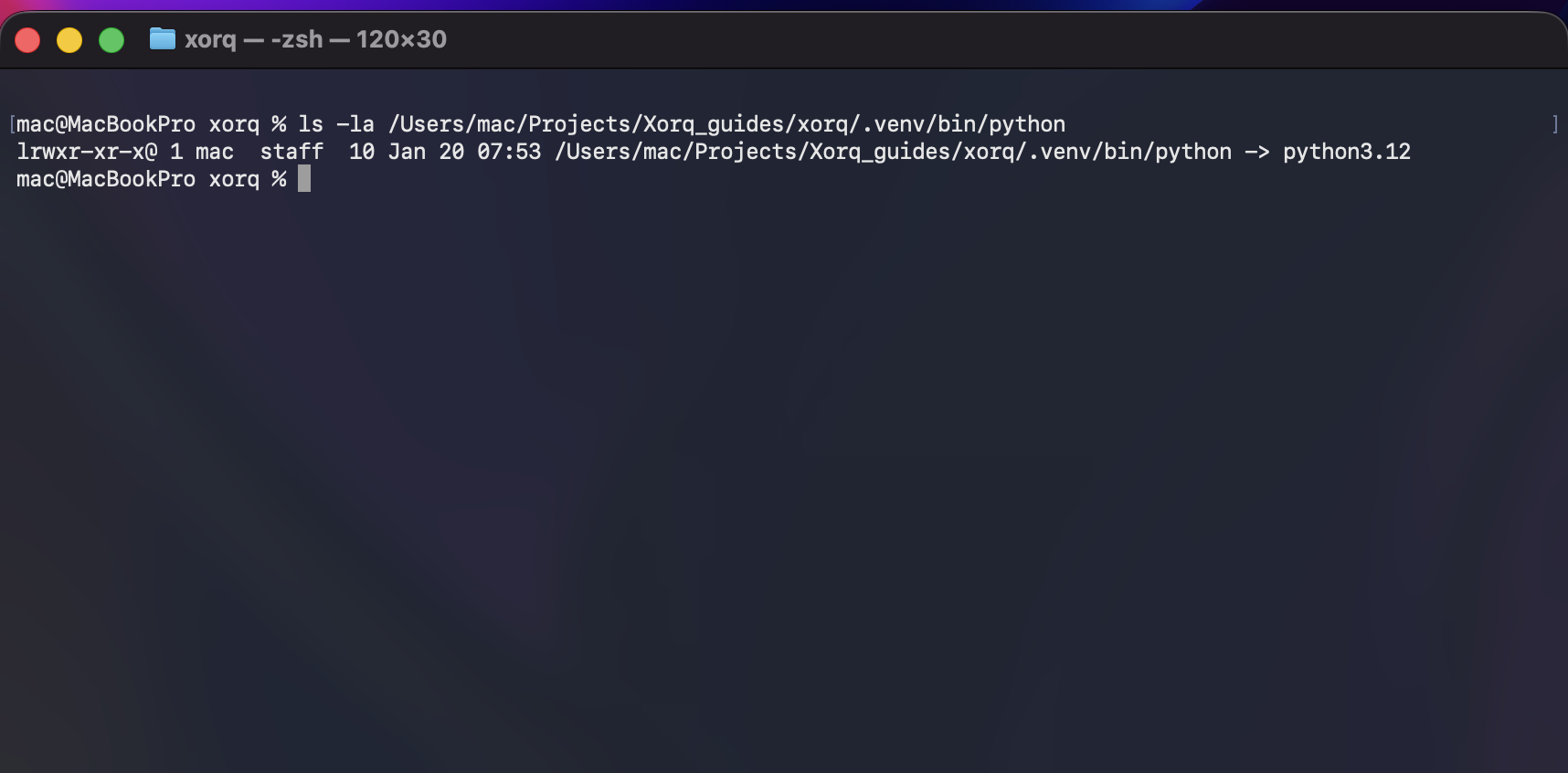
Test the script path exists:
ls -la /Users/yourname/Projects/Xorq_guides/xorq/ai_tutorials/sentiment_mcp_server.pyShould show the file details. 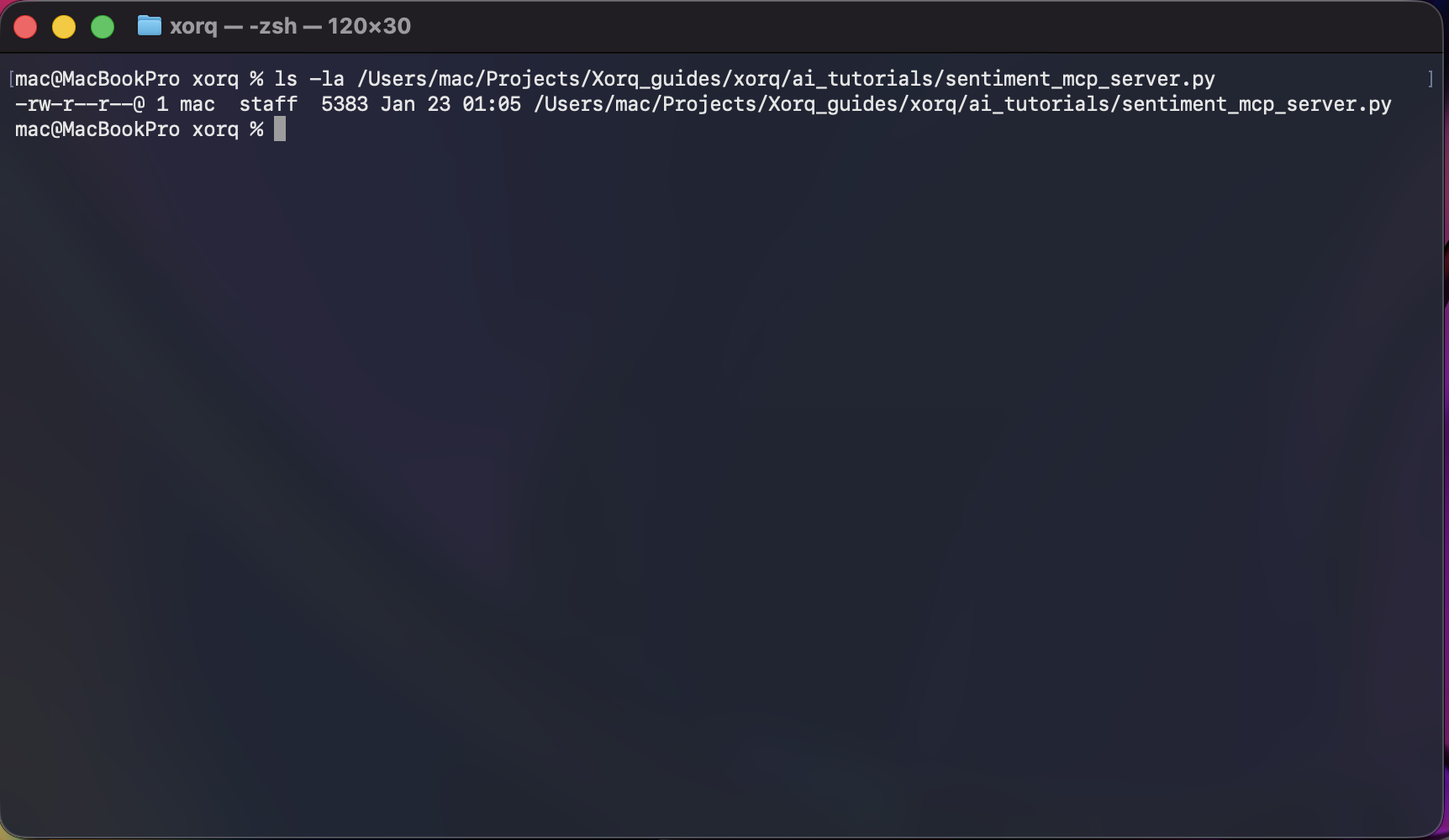
Validate the JSON is correct:
python3 -m json.tool ~/Library/Application\ Support/Claude/claude_desktop_config.jsonIf valid, you’ll see your formatted JSON. If invalid, you’ll see an error.
Test the Python path exists:
dir "C:\Users\yourname\Projects\Xorq_guides\xorq\.venv\Scripts\python.exe"Should show the file details (not “File Not Found”).
Test the script path exists:
dir "C:\Users\yourname\Projects\Xorq_guides\xorq\ai_tutorials\sentiment_mcp_server.py"Should show the file details.
Test running the script with the venv Python:
C:\Users\yourname\Projects\Xorq_guides\xorq\.venv\Scripts\python.exe C:\Users\yourname\Projects\Xorq_guides\xorq\ai_tutorials\sentiment_mcp_server.pyShould show:
MCP tool registered: analyze_sentiment
Starting MCP server...
Press Ctrl+C to stop.
Validate the JSON is correct:
python -c "import json; print(json.load(open(r'%APPDATA%\Claude\claude_desktop_config.json')))"If valid, you’ll see your JSON. If invalid, you’ll see an error.
Step 5: Restart Claude Desktop
You must completely quit and restart Claude Desktop.
- Click Claude in the menu bar
- Click Quit Claude

- Wait 5 seconds
- Open Claude Desktop from Applications folder
After restart:
- Open Claude Desktop
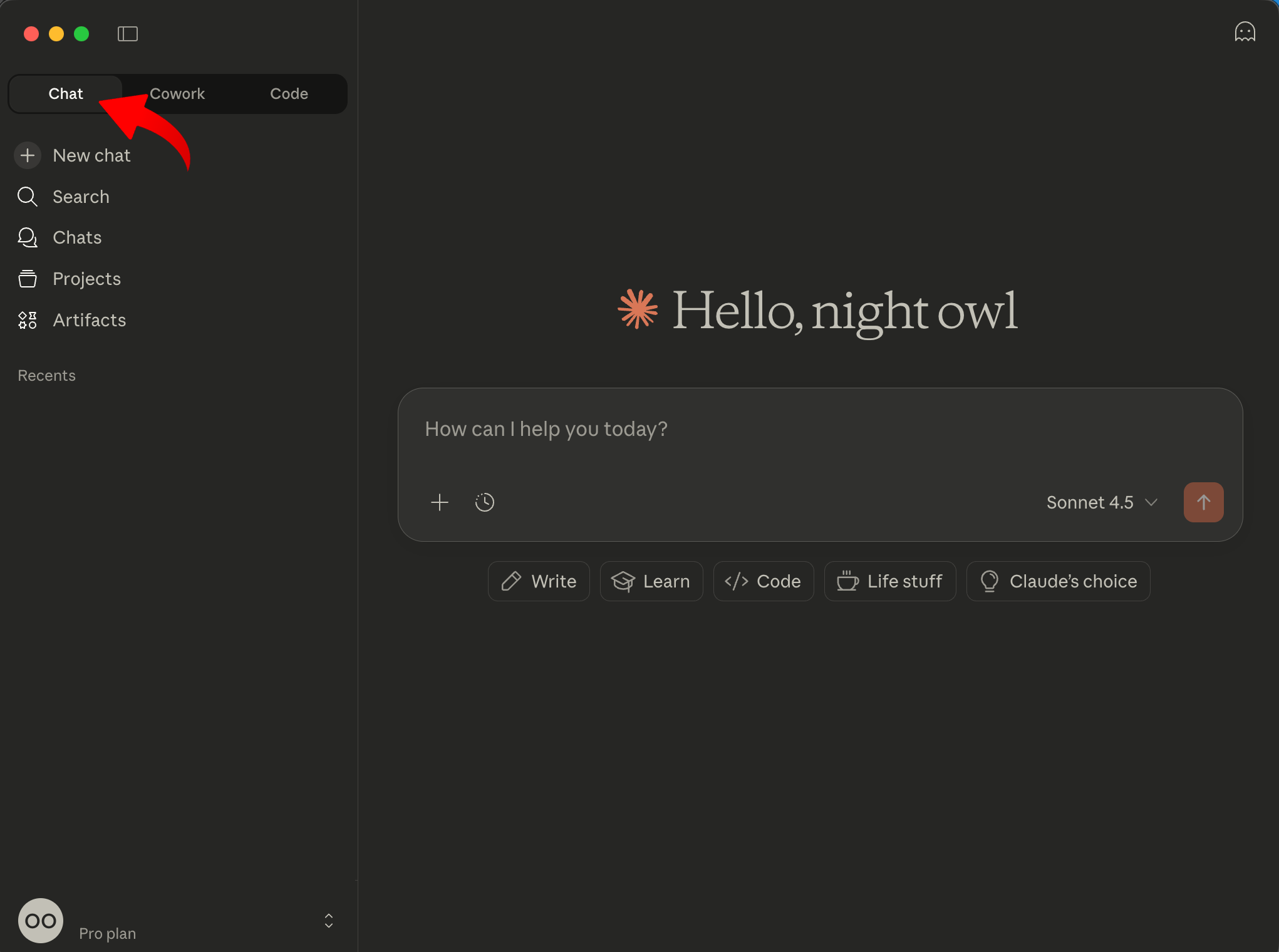
- Go to the Chat tab not Cowork or Code
- Look for Claude icon in system tray (bottom-right, near clock)
- Right-click the icon
- Click Quit
- Wait 5 seconds
- Open Claude Desktop from Start menu
After restart:
- Open Claude Desktop
- Go to the Chat tab (not Cowork or Code)
Test with Claude Desktop
Time to test your MCP tool! Open Claude Desktop and try it out.
Test 1: Positive sentiment
Type this in Claude Desktop:
Analyze the sentiment of this text: "I absolutely love this product!"Expected response:
I've analyzed the sentiment using the sentiment analyzer tool.

Result: POSITIVE
The text sentiment is POSITIVE

The review expresses strong satisfaction and excitement about the product.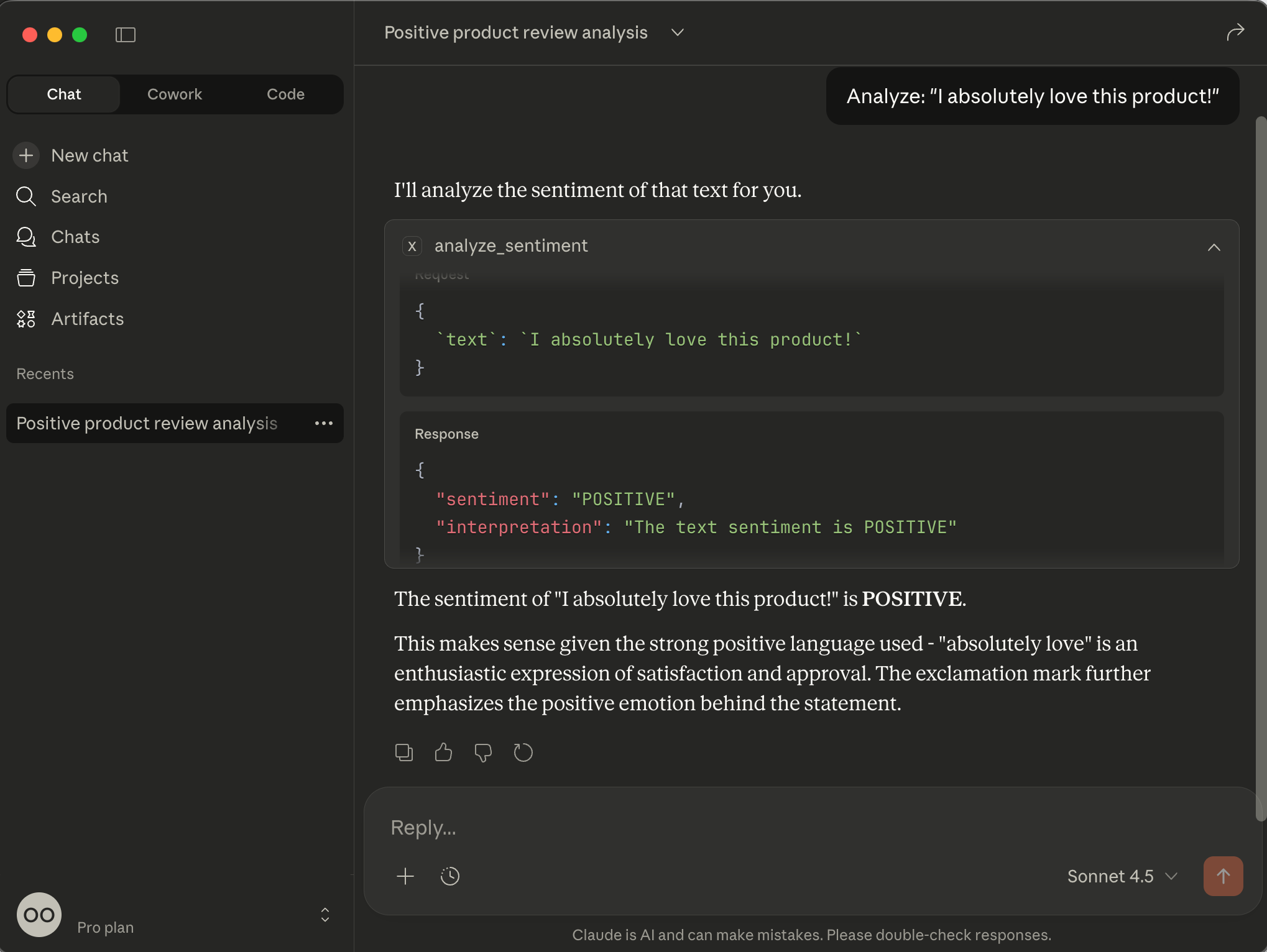
Test 2: Negative sentiment
Analyze: "This product is terrible and broke after one day."Expected response:
Result: NEGATIVE
The text sentiment is NEGATIVE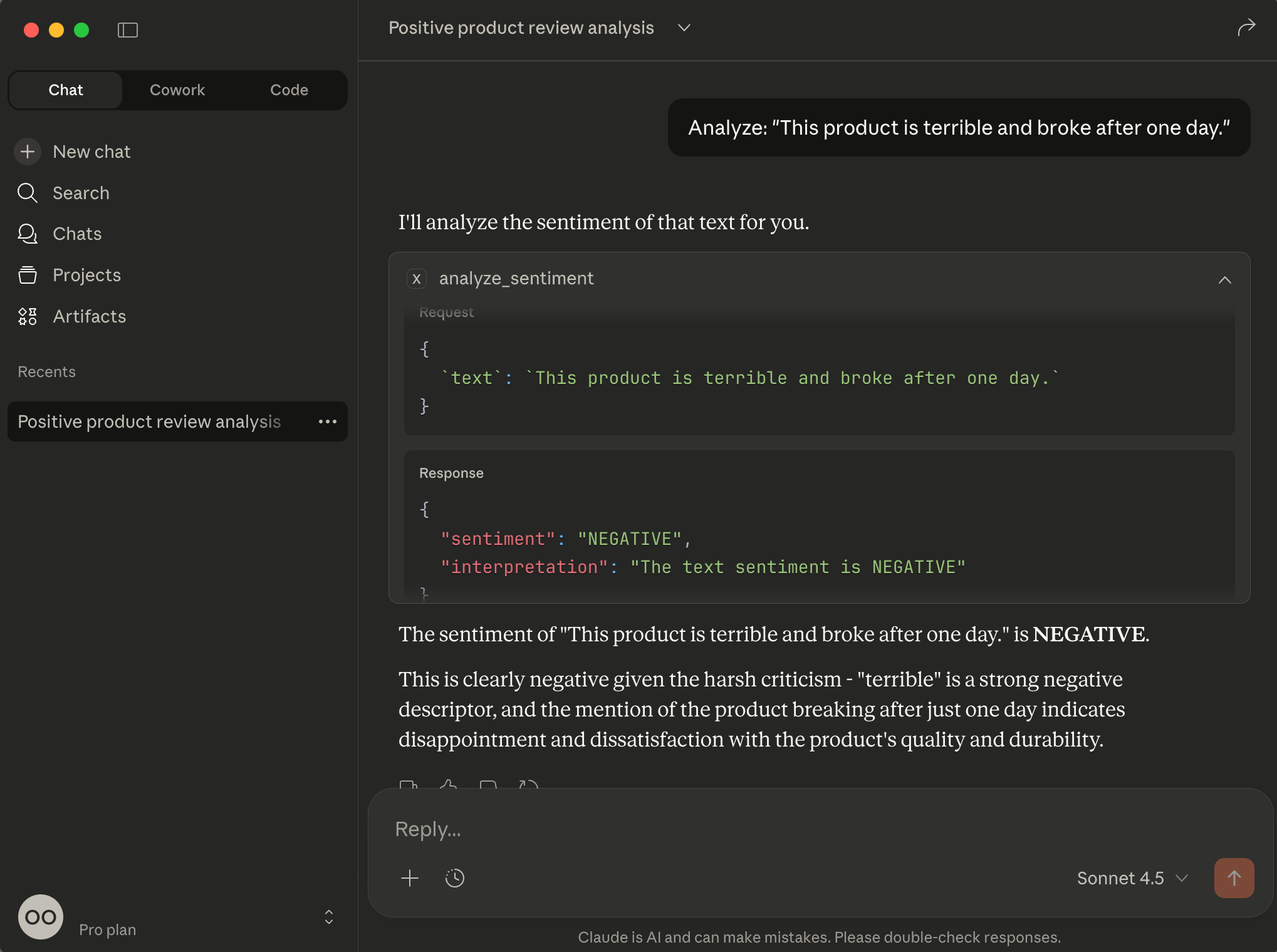
What just happened?
- You typed a message in Claude Desktop
- Claude detected it needed sentiment analysis
- Claude called your
analyze_sentimentMCP tool - Your FlightMCPServer routed the request through Flight protocol
- Your UDXF processed the text via OpenAI
- Results flowed back: UDXF → Flight → FlightMCPServer → MCP → Claude
- Claude presented the formatted result to you
Congratulations! Your MCP tool is working. If you encounter any issues or the tool doesn’t appear in Claude Desktop, the troubleshooting section below will help you diagnose and fix common problems.
Troubleshooting
If things aren’t working, here’s how to debug.
Issue: Tool not appearing or “Server disconnected” error

Check the MCP logs:
tail -50 ~/Library/Logs/Claude/mcp-server-xorq-sentiment.logLook for error messages. Common errors:
“Failed to spawn process: No such file or directory”
- Your Python path or script path is wrong
- Verify paths in Step 4
“Address already in use”
- The Flight server is already running from a previous test
- Kill it:
lsof -ti:8818 | xargs kill -9 - Restart Claude Desktop
type "%APPDATA%\Claude\logs\mcp-server-xorq-sentiment.log"Look for error messages. Common errors:
“Failed to spawn process: No such file or directory”
- Your Python path or script path is wrong
- Check you used double backslashes
\\in paths - Verify paths in Step 4
“Address already in use”
- The Flight server is already running
- Restart your computer or kill the Python process in Task Manager
Issue: “Unexpected token” or JSON parsing errors
Example error:
MCP xorq-sentiment: Unexpected token 'M', "MCP tool r"... is not valid JSONCause: Your script is printing messages to stdout instead of stderr.
Fix: Verify all print statements in your script use file=sys.stderr:
print("MCP tool registered", file=sys.stderr)
print("Starting server", file=sys.stderr)
Issue: Sentiment returns “ERROR”
Check OpenAI API key is set:
Look in your config file - is the OPENAI_API_KEY in the env section?
Check the logs for OpenAI errors:
# macOS
tail -20 ~/Library/Logs/Claude/mcp-server-xorq-sentiment.log

# Windows
type "%APPDATA%\Claude\logs\mcp-server-xorq-sentiment.log"
Look for lines starting with OpenAI Error: to see what went wrong.
Common OpenAI errors: - “No API key”: API key not set in config - “Invalid API key”: Wrong key or expired - “Rate limit exceeded”: Too many requests, wait a few minutes
Issue: Script path has wrong directory structure
Problem: You might see errors like:
python3 /Users/mac/Projects/Xorq_guides/xorq/ai_tutorials/python/sentiment_mcp_server.py
can't open file '/Users/mac/Projects/.../python/sentiment_mcp_server.py': No such file or directoryCause: The script is not in a python subdirectory - it’s directly in ai_tutorials.
Fix: Remove /python/ from your path: - Wrong: .../ai_tutorials/python/sentiment_mcp_server.py - Right: .../ai_tutorials/sentiment_mcp_server.py
Issue: Virtual environment not found
Problem: Error finding Python at .venv/bin/python
Cause: Your venv might be in the parent directory, not the current directory.
Fix:
- Find where your venv actually is:
# macOS
cd /Users/mac/Projects/Xorq_guides/xorq
ls -la | grep venv

# Windows
cd C:\Users\mac\Projects\Xorq_guides\xorq
dir
Update your config with the correct path:
- If venv is in
xorqdirectory:/Users/mac/Projects/Xorq_guides/xorq/.venv/bin/python - If venv is in
ai_tutorials:/Users/mac/Projects/Xorq_guides/xorq/ai_tutorials/.venv/bin/python
- If venv is in
Issue: Claude doesn’t call the tool automatically
Claude decides when to use tools based on the conversation. If Claude isn’t calling your tool:
Try being explicit:
Use the analyze_sentiment tool to analyze: "I love this!"Or phrase it differently:
Can you check the sentiment of this review: "Great product!"What you learned
You’ve successfully built a working MCP tool! Here’s what you accomplished:
- Created a FlightMCPServer class to bridge MCP and Xorq’s Flight protocol
- Built a sentiment analysis UDXF using OpenAI
- Implemented input and output mappers to translate between Claude’s format and Xorq tables
- Configured Claude Desktop to discover and use your custom tools
- Debugged configuration issues including path setup and error handling
The pattern scales to any Xorq function: Build UDXF → create mappers → register with create_mcp_tool() → configure Claude Desktop. MCP tools work only in Claude Desktop, not the web version.
Next steps
Now that you know how to build MCP tools, continue learning:
- Write UDFs for SQL and Python shows how to create user-defined functions for data transformations